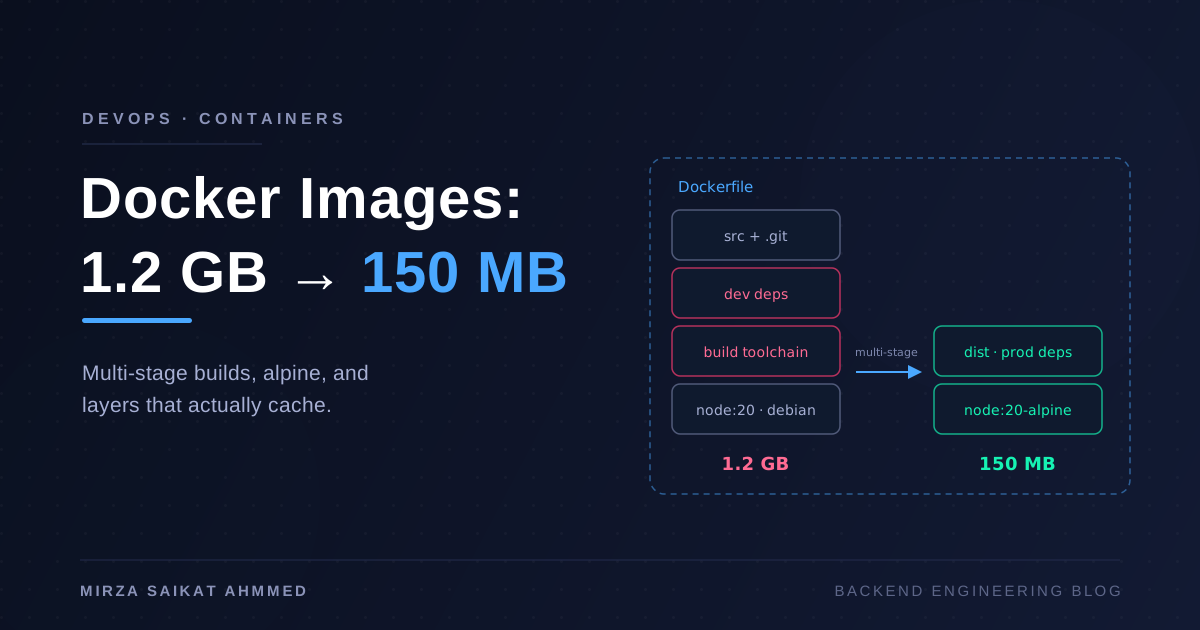
The first Docker image I ever shipped for a NestJS API was 1.24 GB. It worked, so I didn't think about it — until deploys started taking four minutes, most of it spent pushing and pulling layers, and a teammate on hotel Wi-Fi couldn't pull the image at all. The application code inside that image was less than 2 MB. Everything else was baggage: a full Debian userland, compilers, dev dependencies, npm caches, and my .git directory, which I had helpfully copied into the image.
Getting that image to 150 MB didn't require anything exotic. It was six specific changes, each worth understanding on its own, and each one I'll walk through with the actual Dockerfiles. This is the image-building half of the story I started in deploying a Next.js + NestJS monorepo with Docker — same stack, but here we care about every megabyte.
Why image size actually matters
Before the how, the why — because "smaller is better" undersells it:
- Deploy speed. Every deploy pushes layers to a registry and pulls them on the server. A gigabyte image on a 100 Mbit link is ~90 seconds of transfer each way, per node. That's the slowest step of a CI/CD pipeline for most teams, and it's pure waiting.
- Cold starts and scaling. When an orchestrator schedules your container on a fresh node, the image pull is the startup time. Autoscaling that takes three minutes to add capacity isn't really autoscaling.
- Attack surface. A full Debian base ships hundreds of packages — shells, package managers, OpenSSL CLIs — each a potential CVE. Every scanner report I've triaged was dominated by vulnerabilities in OS packages my app never used.
- Registry cost. Registries bill for storage and egress. A CI pipeline pushing a 1.2 GB image twenty times a day adds up faster than you'd expect.
Step 0: the naive Dockerfile (1.24 GB)
Here's roughly what I started with — and what half the tutorials still teach:
FROM node:20

WORKDIR /app
COPY . .
RUN npm install
RUN npm run build

EXPOSE 4000
CMD ["node", "dist/main.js"]
Three separate problems are stacked here. node:20 is built on full Debian — about 1 GB before you add a single file. COPY . . drags in .git, node_modules from my host, logs, and local .env files. And npm install installs everything — TypeScript, ESLint, Jest, @types/* — into an image whose only job is running compiled JavaScript.
Step 1: multi-stage builds (–600 MB)
The core insight of multi-stage builds: the environment that builds your app and the environment that runs it have almost nothing in common. Build in one stage, copy only the artifacts into a clean second stage, and everything else — compilers, dev deps, npm cache — is discarded with the first stage.
# ---- build stage ----
FROM node:20 AS build
WORKDIR /app
COPY package*.json ./
RUN npm ci
COPY . .
RUN npm run build

# ---- runtime stage ----
FROM node:20-slim AS runtime
WORKDIR /app
COPY package*.json ./
RUN npm ci --omit=dev
COPY --from=build /app/dist ./dist
CMD ["node", "dist/main.js"]
The runtime stage starts from node:20-slim (Debian minus the build toolchain) and receives exactly two things: production node_modules and the compiled dist/. TypeScript and its 300 MB of accomplices never make it into the final image. This one change took me from 1.24 GB to roughly 640 MB.
Step 2: production dependencies only (–180 MB)
Worth calling out separately because people get it subtly wrong. npm ci --omit=dev (the modern spelling of --production) installs only what's under dependencies in package.json. Two habits make it effective:
- Use
npm ci, notnpm install. It installs exactly whatpackage-lock.jsonsays, fails loudly on drift, and is faster in clean environments. An image built withnpm installcan differ from what you tested. - Audit what's actually a runtime dep. The first time I ran
du -sh node_modules/* | sort -hin the runtime stage, I foundtypescript,aws-sdk(the entire v2 kitchen sink for one S3 call), and a date library I'd replaced months earlier. Moving and removing misfiled packages was worth 100+ MB on its own — no Docker knowledge required.
Step 3: alpine — and its trade-offs (–130 MB)
node:20-alpine is built on Alpine Linux, a ~5 MB base image, versus ~75 MB for slim Debian. Swapping the runtime stage's base took me to about 220 MB. But alpine is the step where you're trading size for compatibility, and I've been bitten enough to list the gotchas honestly:
- musl instead of glibc. Alpine uses the musl libc. Any npm package with prebuilt native binaries (
bcrypt,sharp,better-sqlite3) ships glibc binaries by default; on alpine they either recompile from source (needingpython3 make g++in the build stage) or fail at runtime with crypticError loading shared librarymessages. - Subtle behavior differences. musl's DNS resolver and thread-stack defaults differ from glibc's. These surface as weird production-only bugs — DNS timeouts under load is the classic.
- Debugging is barebones. No
bash, minimal coreutils. Fine until you're shelled into a broken container at midnight.
Alpine vs distroless: Google's gcr.io/distroless/nodejs20 goes further — no shell, no package manager, no OS utilities at all, just node and your app. It's glibc-based (no musl gotchas) and a smaller attack surface than alpine. The costs: you can't docker exec a shell into it, and there's no npm inside, so your CMD must invoke node directly. My rule of thumb: alpine when I want small and occasionally need a shell; distroless when security scanning and minimal surface are the priority and my debugging story is logs + metrics anyway.
Step 4: .dockerignore (the file everyone forgets)
.dockerignore doesn't shrink the final image directly when you're multi-staging — but it shrinks the build context (what gets sent to the Docker daemon on every build) and keeps junk from sneaking in via COPY . .:
# .dockerignore
node_modules
dist
.git
*.md
.env*
coverage
Dockerfile
docker-compose*.yml
Before this file existed, every build of mine started by uploading a 400 MB context (mostly .git and host node_modules) to the daemon. After: 2 MB, and builds start instantly. It's also a security control — .env files with real credentials have ended up baked into public images more times than the industry likes to admit.
Step 5: layer ordering for cache hits
This step is about build speed, not size, but it's the same file so it belongs here. Docker caches each layer and reuses it if the instruction and its inputs haven't changed — but a cache miss invalidates every subsequent layer. So order layers from least- to most-frequently changing:
COPY package*.json ./     # changes rarely
RUN npm ci                # cached unless the lockfile changed
COPY . .                  # changes every commit
RUN npm run build
Copy the lockfile alone, install, then copy source. Get this backwards — COPY . . before npm ci — and every one-line code change re-runs a full dependency install. This single ordering decision is the difference between 40-second and 4-minute incremental builds.
Step 6: BuildKit cache mounts
Even with perfect layer ordering, changing one dependency re-downloads all of them, because the npm ci layer is all-or-nothing. BuildKit cache mounts fix this by persisting npm's cache directory across builds without it ever entering a layer:
RUN --mount=type=cache,target=/root/.npm \
    npm ci --omit=dev
The mount exists only during that RUN; npm pulls most packages from local cache instead of the network. In CI, pair it with registry-backed layer caching (cache-from: type=gha in docker/build-push-action) so runners share cache across builds. My dependency-install step went from ~90 seconds to ~15.
The final Dockerfile
All six steps composed:
# syntax=docker/dockerfile:1
FROM node:20-alpine AS build
WORKDIR /app
COPY package*.json ./
RUN --mount=type=cache,target=/root/.npm npm ci
COPY . .
RUN npm run build

FROM node:20-alpine AS runtime
ENV NODE_ENV=production
WORKDIR /app
COPY package*.json ./
RUN --mount=type=cache,target=/root/.npm npm ci --omit=dev
COPY --from=build /app/dist ./dist
USER node
EXPOSE 4000
CMD ["node", "dist/main.js"]
(USER node is a freebie: the official images ship a non-root user, and there's no reason a compiled app should run as root.)
The scorecard
Measured on the actual NestJS API, docker images after each step:
| Step | Change | Image size | Notes |
|---|---|---|---|
| 0 | node:20, single stage, npm install |
1.24 GB | The tutorial special |
| 1 | Multi-stage, node:20-slim runtime |
640 MB | Build toolchain discarded |
| 2 | npm ci --omit=dev + dep audit |
460 MB | Dev deps and misfiled packages gone |
| 3 | node:20-alpine runtime |
218 MB | musl caveats apply |
| 4 | .dockerignore |
218 MB | Context 400 MB → 2 MB; hygiene win |
| 5 | Layer ordering | 218 MB | Incremental builds 4 min → 40 s |
| 6 | BuildKit cache mounts + prod-only pruning | 152 MB | Install step ~15 s in CI |
An 87% reduction, and not one step required changing application code. The smaller image also quietly improved the deploy story: pulling 150 MB takes seconds, which shrinks the window during a rolling deployment where old and new versions coexist.
Wrapping up
Nobody plans a 1.2 GB image — it's just what happens when a Dockerfile is written once, works, and is never questioned. The fix is a sequence of small, independently useful decisions: separate the build environment from the runtime, install only what production runs, choose a base image deliberately (and know what musl will cost you), keep the context clean, and order layers so the cache works for you instead of against you.
Do them in that order, measure with docker images and docker history after each step, and stop when the next step costs more than it saves — for most Node services, that's somewhere between alpine and distroless. The megabytes are the headline, but the compounding wins are the four-minute deploys that become forty seconds and the CVE reports that fit on one screen.
Working on something like this?
I take on backend, payments and deployment projects. I reply within one working day.