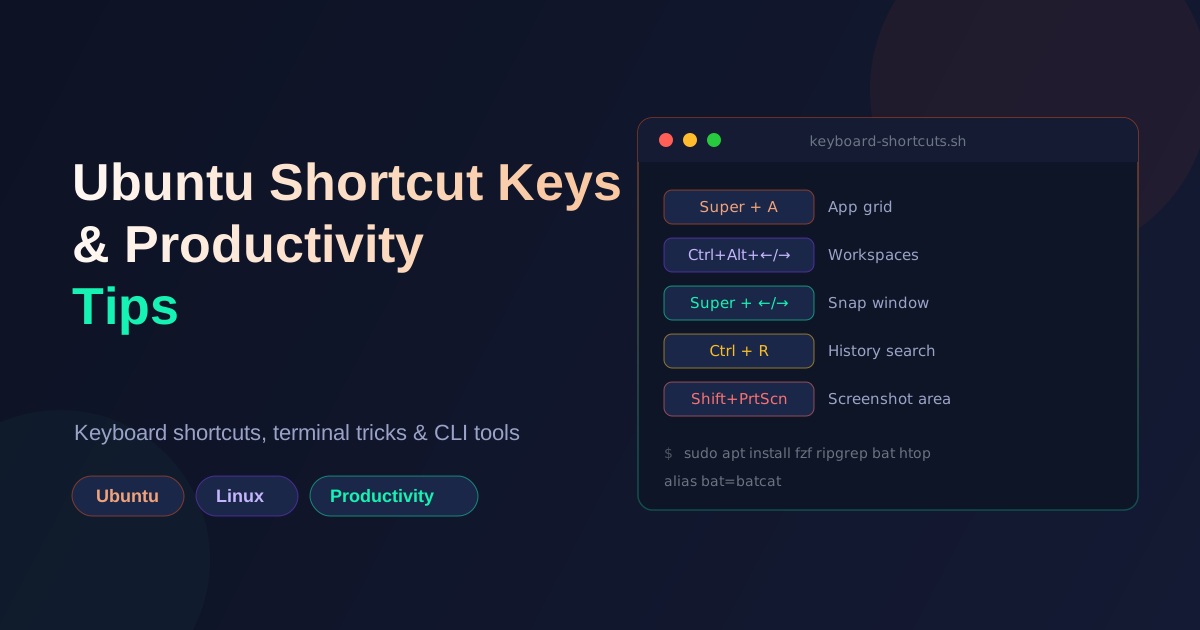
I spend most of my day inside Ubuntu — terminal, browser, editor, repeat. Over the years the biggest speed gains haven't come from a faster machine, they've come from touching the mouse less. Below is the shortcut list and toolbox I actually use, organized by what you're doing rather than dumped alphabetically.
This is written for the default GNOME desktop that ships with modern Ubuntu (22.04/24.04+). If you're on a different desktop environment (KDE, Xfce, Cinnamon), the window-management keys will differ, but the terminal and CLI sections apply everywhere.
Window and workspace management
| Shortcut | Action |
|---|---|
Super |
Open Activities overview (search apps, windows, workspaces) |
Super + A |
Open the app grid |
Super + Tab |
Switch between open applications |
Alt + Tab |
Switch between open windows (all apps) |
Alt + `` `` |
Switch between windows of the same app |
Super + ← / → |
Snap window to left/right half of screen |
Super + ↑ |
Maximize window |
Super + ↓ |
Restore/minimize window |
Super + H |
Minimize current window |
Ctrl + Alt + ← / → |
Move to the workspace on the left/right |
Ctrl + Alt + Shift + ← / → |
Move the current window to another workspace |
Super + Page Up/Down |
Alternate way to switch workspaces |
Workspaces are the most underused feature on Ubuntu. I keep one workspace for the browser + notes, one for the terminal + editor, and one for communication apps. Switching with Ctrl + Alt + ←/→ is faster than alt-tabbing through a pile of unrelated windows.
Dual monitor shortcuts
If you work with two monitors (laptop + external, or two externals), these are the shortcuts that pay off the most. Once you internalize them, you stop reaching for the mouse to drag windows between screens entirely.
| Shortcut | Action |
|---|---|
Super + P (or Super + F8 on some laptops) |
Open the display arrangement / projection panel — clone, extend, second-screen-only |
Super + Shift + ← / → |
Move the focused window to another monitor |
Super + Shift + ↑ / ↓ |
Move the focused window to the top/bottom monitor (stacked layout) |
Super + ← / → (with multiple monitors) |
Snap to the left/right half, spanning both displays if your monitors are side-by-side |
Ctrl + Super + ↑ / ↓ |
Toggle sticky edges — without this, dragging a window between monitors is a fight; with it on, the cursor crosses monitors smoothly |
Shift + Ctrl + Super + ← / → |
Move window to the workspace on the adjacent monitor (if you keep different workspaces per monitor) |
Alt + Super + S (GNOME 45+) |
Toggle do not disturb when you're focusing and don't want notification popups on the second screen |
Tips that pair with these shortcuts
- Set one monitor as primary: Settings → Displays → click the monitor you read code on → enable "Primary Display." New windows, dialogs, and the top bar will all open there instead of splitting across screens.
- Match scaling between monitors: if your laptop is HiDPI (200% / 175%) and your external is 100%, cursor and window dragging feel "sticky." Set them to the same scale percentage (Settings → Displays → Scale), or accept the trade-off and turn on fractional scaling.
- Turn on sticky edges if you haven't:
gsettings set org.gnome.mutter experimental-features "['sticky-cursors', 'scale-monitor-framebuffer']"then log out/in. Without it, you'll drag windows to the edge and they'll refuse to cross over. - Workspace-per-monitor trick: I keep Slack/email on the right monitor full-time and never bind a workspace to it. The left monitor cycles through browser/editor/terminal workspaces, and
Super + Shift + ←/→shoves whatever I need over to the right monitor in one keystroke. - Disable the second monitor quickly when you unplug:
gnome-control-center display→ toggle the secondary monitor off. The setting is remembered per-display, so it'll come back the next time you plug in.
The single biggest productivity win on a dual-monitor setup is Super + Shift + ←/→ to move windows between screens. Pair it with Super + P to bring up the panel when you dock/undock, and you basically never need to drag a window by its title bar again.
Screenshots and screen recording
| Shortcut | Action |
|---|---|
PrtScn |
Screenshot the full screen (saved to ~/Pictures/Screenshots) |
Shift + PrtScn |
Screenshot a selected area |
Alt + PrtScn |
Screenshot the active window |
Ctrl + PrtScn |
Screenshot full screen → copy to clipboard |
Ctrl + Shift + PrtScn |
Screenshot selection → copy to clipboard |
Super + Shift + R |
Start/stop screen recording (saved to ~/Videos) |
The Ctrl variants that copy straight to the clipboard save an extra trip to the file manager when you just need to paste a screenshot into Slack or a PR comment.
Text editing and general navigation
| Shortcut | Action |
|---|---|
Ctrl + C / Ctrl + V / Ctrl + X |
Copy / paste / cut |
Ctrl + A |
Select all |
Ctrl + Z / Ctrl + Shift + Z |
Undo / redo |
Ctrl + F |
Find (most apps) |
Ctrl + L |
Focus the address bar (browser, file manager) |
Alt + F4 |
Close the active window |
Super + L |
Lock the screen |
Super + D |
Show desktop |
Ctrl + Alt + T |
Open a new terminal window |
Ctrl + Alt + Del (or Ctrl + Alt + Esc) |
Open the system monitor / force-quit dialog |
Terminal shortcuts (bash/zsh)
These live in the shell, not the desktop, but they're the ones that save the most keystrokes over a day:
| Shortcut | Action |
|---|---|
Ctrl + R |
Reverse search command history |
Ctrl + A / Ctrl + E |
Jump to start / end of line |
Ctrl + U |
Clear from cursor to start of line |
Ctrl + K |
Clear from cursor to end of line |
Ctrl + W |
Delete the word before the cursor |
Ctrl + L |
Clear the screen (same as clear) |
Ctrl + C |
Kill the running foreground process |
Ctrl + Z |
Suspend the running process (resume with fg) |
Alt + . |
Insert the last argument of the previous command |
Tab / Tab Tab |
Autocomplete / list completions |
Shift + Ctrl + T |
New terminal tab (in most terminal emulators) |
Shift + Ctrl + C/V |
Copy/paste inside the terminal (since Ctrl+C is taken) |
Ctrl + R plus a decent HISTSIZE in .bashrc genuinely replaces half of what people reach for a GUI history viewer for:
# in ~/.bashrc
HISTSIZE=10000
HISTFILESIZE=20000
HISTCONTROL=ignoredups:erasedups
shopt -s histappend
Useful CLI tools worth installing
A few small tools that pay for themselves within a week of installing them:
fzf— fuzzy finder. Pairs withCtrl + Rfor fuzzy history search and withfind/vimfor fuzzy file opening.ripgrep(rg) — agrepreplacement that's dramatically faster and respects.gitignoreby default.bat— acatreplacement with syntax highlighting and line numbers.htop/btop— interactive process viewers, far more usable thantop.tldr— community-driven man pages with just the examples you actually need (tldr tarbeats scrolling throughman tar).ncdu— an interactive disk-usage analyzer; great for finding what's eating your disk.tmux— terminal multiplexer for persistent sessions that survive SSH disconnects.
sudo apt update
sudo apt install fzf ripgrep bat htop tldr ncdu tmux
On some Ubuntu versions bat and fd install as batcat and fdfind to avoid a name clash — alias them if that bothers you:
echo "alias bat=batcat" >> ~/.bashrc
echo "alias fd=fdfind" >> ~/.bashrc
Package management cheat sheet
The commands I reach for most when managing software:
sudo apt update && sudo apt upgrade -y   # refresh package lists and upgrade
sudo apt install <package>               # install
sudo apt remove <package>                # remove, keep config files
sudo apt purge <package>                 # remove including config files
sudo apt autoremove                      # clean up orphaned dependencies
apt list --installed | grep <name>       # check if something is installed
dpkg -L <package>                        # list files owned by a package
For anything not in the apt repos, Snap and Flatpak cover most modern GUI apps:
sudo snap install <app>
flatpak install flathub <app-id>
I generally prefer apt or a .deb when available — snaps are sandboxed and convenient but tend to start slower and clutter df -h output with loopback mounts.
Settings worth changing on a fresh install
A few defaults I change on every new Ubuntu install:
- Settings → Keyboard → Keyboard Shortcuts — remap "Switch windows" to
Alt+Tabbehaving per-window instead of per-app if you work with several terminals/editors at once. - Settings → Mouse & Touchpad → Tap to Click — off by default; on saves a lot of finger travel on a laptop.
- Settings → Power → Screen Blank — extend past the default 5 minutes if you're watching logs or long-running builds.
Superkey focus follows mouse — GNOME Tweaks (gnome-tweaks) lets you enable "focus on hover," useful if you're used to a tiling-window-manager workflow.- Night Light (Settings → Displays) — auto-adjusts color temperature after sunset; worth turning on if you code late.
Install GNOME Tweaks for the settings that don't show up in the default Settings app:
sudo apt install gnome-tweaks
A few habits, not just shortcuts
- Learn the three or four workspace shortcuts before anything else — they compound every single day.
- Set up
Ctrl + Rwithfzfbefore memorizing exact commands; searching beats recalling. - Keep one terminal shortcut key bound at the OS level (
Ctrl+Alt+T) so you're never more than one keystroke from a shell. man <command>is still there, buttldr <command>is where I actually look first.
None of these shortcuts are individually dramatic — the value is cumulative. Shaving half a second off switching windows or finding a past command, multiplied by however many times a day you do it, adds up to real focus time saved.
Working on something like this?
I take on backend, payments and deployment projects. I reply within one working day.